Never miss a word
from your lectures
again.
LessonScriptor transcribes your lectures automatically — so you can focus on understanding, not writing. Built for students, ADHD learners, and anyone who learns better by reading along.
Install Free — Chrome ExtensionFree · No spam · Launch alert only

The problem
Your brain struggles to write and
listen at the same time.
Lectures move fast. Notes fall behind. You end up choosing between understanding and capturing — and either way, something gets lost.
Hand cramps, missed words
Writing fast enough to keep up means your notes are incomplete — or illegible.
ADHD makes it harder
Splitting focus between listening and writing is exhausting. Something always slips.
Non-native language
Following a fast lecture in your second language is double the cognitive load.
No notes = no studying
Without written notes, reviewing means watching the whole lecture again.
Our story
Built at the
kitchen table.
We're Victoria and Pierre — a couple from the south of France. Victoria is studying anthropology online — every lecture, every seminar, every workshop streamed from home. Pierre loves building things with code. This started as a side project to see if a little Chrome extension could help — and turned into something we think everyone deserves.
Victoria's days are hours of video lectures back to back. Taking notes while watching meant losing the thread. Rewinding, rewriting, rewatching. Notes too sparse to study from, or too rushed to read. On top of that, she has ADHD — which makes splitting focus between listening and writing not just hard, but exhausting.
So Pierre started building, and Victoria tested every version — broke things, gave feedback, explained what was actually missing. Evening after evening, laptop to laptop.
This is the result. We're making it available to everyone because no student should have to choose between listening and writing. If it helps you even once, it was worth it.
Who it's for
Built for people who learn by reading along
Students
University lectures, online courses, MOOCs — capture everything without losing the thread of what's being said.
Free mode works greatADHD Learners
Reading along while listening dramatically reduces cognitive load. Stop losing focus mid-lecture.
Accessibility firstNon-native speakers
Watching lectures in a second language? Having the transcript appear in real-time lets you follow along without missing a word.
Any languageOnline Course Takers
Udemy, Coursera, YouTube tutorials — turn any video into searchable, editable notes automatically.
Any video siteLive editing
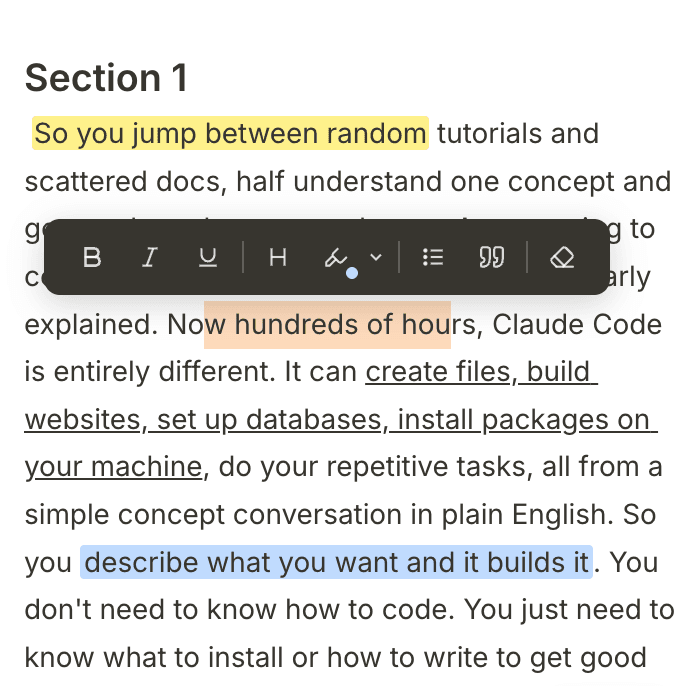
Edit while you watch.
Highlight in 5 colors, bold key terms, add headers and bullets — turn a raw transcript into study-ready notes without leaving the video.
What it does
Everything you need.
Nothing you don't.
Accuracy you can trust
Audio is sent in chunks — 10 seconds in Normal mode, 30 seconds in Optimal for even better accuracy. A short delay, but far more accurate text than any real-time alternative.
A real note editor
Don't just read — work directly in the transcript. Highlight key phrases, bold terms, add headers and bullets, remove the parts you don't need. Most students finish their notes before the lecture ends.
Export anywhere
Download as .txt or .md, or copy to clipboard. Your notes, your format.
14 languages
English, French, Spanish, Arabic, Hindi and more. Transcribe in the language of your lecture — great for non-native speakers following along.
Privacy first
Everything stays local by default — no account, no cloud processing in free mode. Your audio, your data.
Session history
All your past transcriptions are saved automatically. Pick up where you left off — nothing is ever lost.
Compatibility
Works everywhere
audio plays.
University internal platforms, protected videos, public sites — if audio comes out of your computer, we can transcribe it.
University platforms
Moodle, Canvas, Blackboard, Panopto — the ones with no download, no subtitles, and no help. If the video plays in your browser, we transcribe it.
Public video sites
YouTube, Coursera, Udemy — all the classics. But also any embedded player on any site, no matter how obscure or non-standard.
Works with headphones
AI mode captures tab audio directly from the browser — no microphone, no speakers needed. Study at 2am without disturbing anyone.
How the two modes capture audio
Free mode uses your microphone to pick up audio through your speakers. Works on every platform — but volume matters. Turn system volume up for best accuracy.
AI mode captures the browser tab audio directly, bypassing your mic entirely. Clean capture with headphones on, at any volume, on any protected platform.
Pricing
Free forever. Pay only
for what you transcribe.
Start for free with your microphone. Top up when you need AI-powered transcription — no subscription, no expiry.
Why does AI mode cost money? Free mode uses your browser's built-in speech recognition — local, instant, free. AI mode sends your audio to a state-of-the-art cloud AI model. That processing has a real cost. We pass it on transparently: credits are consumed second-by-second from your pack, they never expire, and you choose how fast you burn them based on the transcription mode you use.
Free
Uses your browser's built-in speech engine and your microphone. Fully local — no audio sent anywhere.
- ✓ Transcription via microphone
- ✓ Full editing — highlights, bold, headers, bullets
- ✓ Export .txt, .md, clipboard
- ✓ 14 languages
- ✓ Session history & auto-save
- – Works with headphones
- – Cloud AI accuracy
AI Mode — Pay as you go
Buy a pack once. Your hours are consumed second-by-second as you transcribe, so nothing is wasted when you stop. The bigger the pack, the lower the price per hour.
Works with headphones on. Tab audio is captured directly — no microphone, no speakers needed.
Payments processed securely by Stripe.
- ✓ Everything in Free, including full editing
- ✓ Cloud AI engine — far better accuracy than browser speech
- ✓ Direct tab audio — works with any headphones
- ✓ Higher accuracy across accents & background noise
- ✓ Hours consumed second-by-second — nothing wasted when you stop
- ✓ Credits never expire — top up whenever you want
- ✓ 10-min grace period if credits run out mid-lecture
Buy once, use whenever. A full semester at 3h/week costs around $21 — less than two textbook chapters.
Get started
Up and running
in 60 seconds
No account. No configuration. Just install and go.
Install the extension
Add it to Chrome from the Web Store. No sign-up required.
Chrome Web StoreOpen any video
Go to YouTube, Coursera, Udemy — any site with a video lecture.
Any video siteHit Record
Click the extension icon, open the side panel, press Record. That's it.
Side panel opensHelpful Resources
Go deeper.
Learn more.
Practical guides on note-taking, focus, and study tools — written for students who think differently.
The 12 Best Apps for ADHD Students in 2026
A complete toolkit covering note-taking, focus, task management, and memory.
How to Take Notes with ADHD
Why your brain can't listen and write at the same time — and what to do instead.
How to Focus During Online Lectures with ADHD
6 science-backed strategies and the best tools to stay engaged.
The ADHD Note-Taking Template
A free, ADHD-friendly template adapted from Cornell's method.
Support
Common questions
How do credits work?
Buy a credit pack and you'll receive a license key by email. Open the extension settings, enter the key, and your credits activate immediately. They're consumed second-by-second as you transcribe — nothing is wasted when you stop.
I lost my activation code. What do I do?
Check your inbox — the key was sent when you purchased. Your key is portable: it works on any computer, survives reinstalls, and your remaining credits are always preserved. Think of it as a prepaid balance, not a device licence.
My transcription is in the wrong language.
Make sure you've selected the correct language in the extension settings before starting. If you changed language mid-session, stop the transcription, select the right language, and start again. The speech engine needs a clean restart to switch languages.
The transcription isn't working at all.
Try these steps in order: (1) Make sure the extension is up to date — check for updates in chrome://extensions. (2) Reload the extension by toggling it off and on. (3) Reload the page with the video. (4) Check your internet connection — AI mode requires it. (5) If you're using mic mode, make sure your system volume is high enough (80%+) and that you've granted the extension permission to access your microphone.
Microphone mode isn't picking up the audio.
This is almost always a volume issue. Free mode relies on your mic hearing your speakers — the louder your system volume, the better the pickup. MacBook Air users typically need a higher volume than MacBook Pro users. Also make sure you've allowed microphone access for the extension.
Can I transcribe multiple videos at the same time?
Yes — but only with AI mode. AI mode captures tab audio per tab, so each video runs independently. Free (mic) mode captures whatever your speakers play, so mixing audio sources will confuse the transcription.
Get in touch
Help us build something
you actually love.
This extension was built out of a real need. If you have ideas, run into a bug, or just want to say hi — we read everything.
Feature suggestions
Something missing? Tell us what would make this better for you.
Bug reports
Something broken? We want to know — the more detail the better.
Just saying hi
We genuinely love hearing how people use it. Drop us a note.
This extension was built out of a real need. If you have ideas, run into a bug, or just want to say hi — we read everything.
Send →Because learning shouldn't mean writing everything down by hand.
Free to install. Free to use. Built for learners who deserve better tools.
Install Free — Chrome Extension