Nunca mais perca
uma palavra das suas aulas
.
O LessonScriptor transcreve suas aulas automaticamente — sejam aulas EAD no AVA da faculdade ou videoaulas presenciais gravadas. Foque em entender, não em escrever. Feito para estudantes, pessoas com TDAH e todos que aprendem melhor lendo junto.
Instalar grátis — Extensão do ChromeGrátis · Sem spam · Só alerta de lançamento
O problema
Seu cérebro tem dificuldade para escrever e
ouvir ao mesmo tempo.
As aulas vão rápido. As anotações ficam para trás. Você acaba escolhendo entre entender e anotar — e de qualquer forma, algo se perde.
Aulas de 3 horas sem pausar
Aulas longas no EAD ou no presencial passam rápido. Anotar tudo à mão significa anotações incompletas — ou ilegíveis.
O TDAH torna tudo mais difícil
Dividir o foco entre ouvir e escrever é exaustivo. Algo sempre escapa — ainda mais quando você precisa revisar para o ENEM ou vestibular.
Idioma não nativo
Acompanhar uma aula rápida na sua segunda língua dobra a carga cognitiva.
Sem anotações = sem estudo
Sem anotações escritas, revisar para a prova significa reassistir toda a aula de novo.
Nossa história
Criado na
mesa da cozinha.
Somos Victoria e Pierre — um casal do sul da França. Victoria estuda antropologia online — cada aula, cada seminário, cada workshop transmitido de casa. Pierre adora construir coisas com código. Tudo começou como um projeto paralelo para ver se uma pequena extensão do Chrome poderia ajudar — e se transformou em algo que achamos que todos merecem.
Os dias de Victoria são horas de videoaulas seguidas. Fazer anotações enquanto assistia significava perder o fio da meada. Voltar, reescrever, reassistir. Anotações esparsas demais para estudar ou apressadas demais para ler. Além disso, ela tem TDAH — o que torna dividir o foco entre ouvir e escrever não apenas difícil, mas exaustivo.
Então Pierre começou a programar, e Victoria testou cada versão — quebrou coisas, deu feedback, explicou o que realmente faltava. Noite após noite, laptop a laptop.
Este é o resultado. Estamos disponibilizando para todos porque nenhum estudante deveria ter que escolher entre ouvir e escrever. Se te ajudar nem que seja uma vez, já valeu a pena.
Para quem é
Feito para quem aprende lendo junto
Estudantes universitários
Aulas no Moodle, no Sigaa, no AVA da sua faculdade ou no presencial — capture tudo sem perder o fio da meada, da licenciatura ao mestrado.
O modo gratuito funciona muito bemPessoas com TDAH
Ler junto enquanto escuta reduz drasticamente a carga cognitiva. Pare de perder o foco no meio da aula.
Acessibilidade em primeiro lugarFalantes não nativos
Assistindo aulas em uma segunda língua? Ver a transcrição aparecer em tempo real permite acompanhar sem perder uma palavra.
Qualquer idiomaAlunos EAD e de cursos online
Udemy, Coursera, tutoriais no YouTube ou videoaulas da sua universidade — transforme qualquer vídeo em anotações pesquisáveis e editáveis.
Qualquer site de vídeoEdição ao vivo
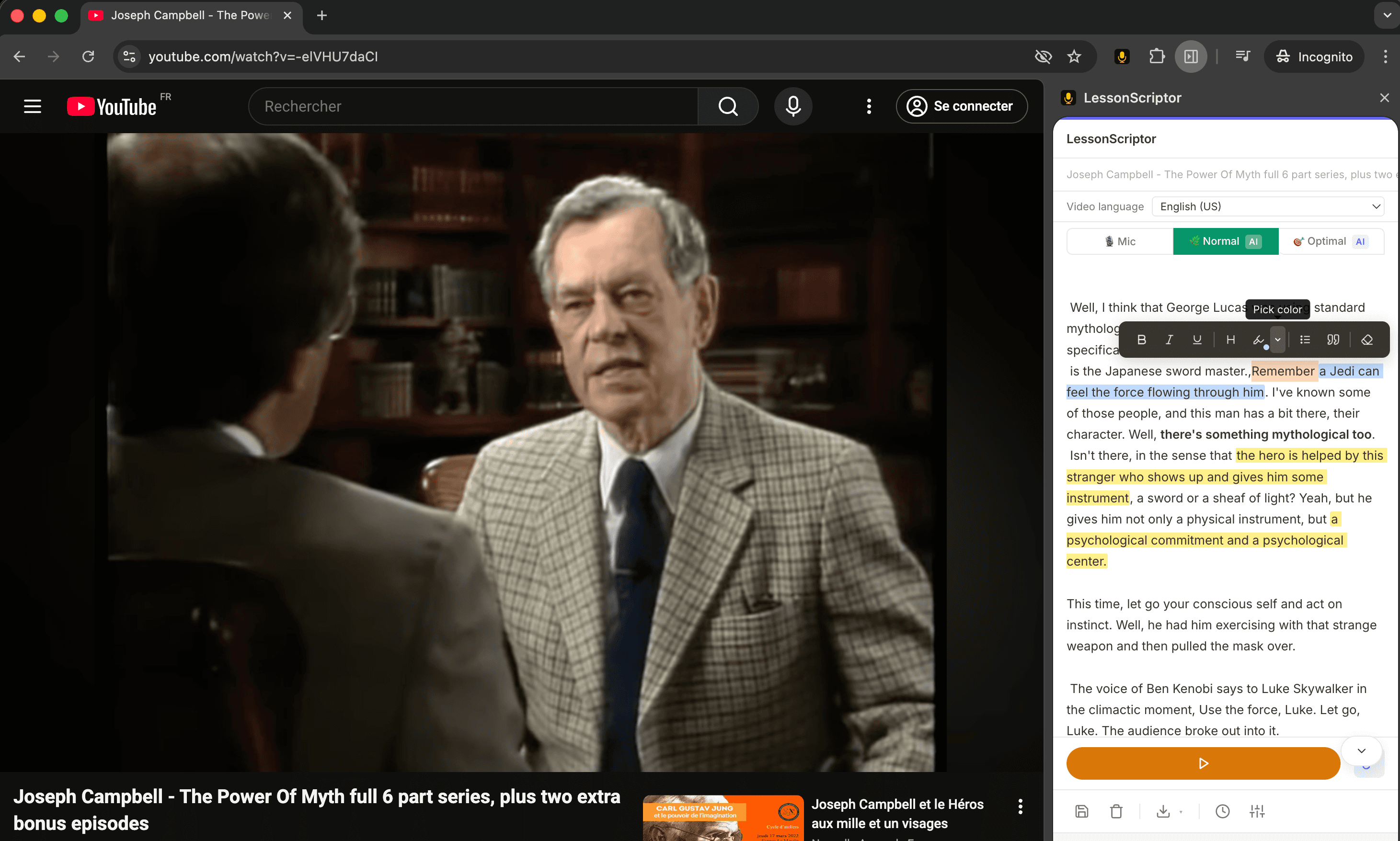
Edite enquanto assiste.
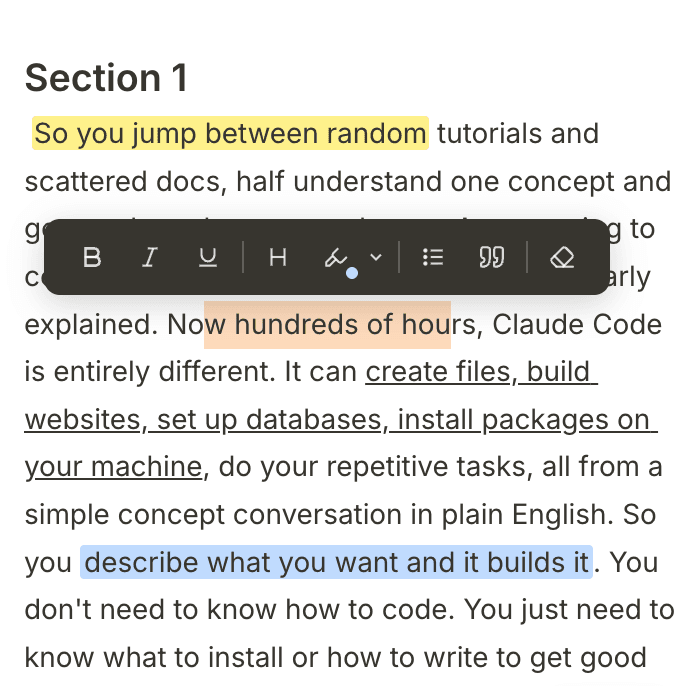
Destaque em 5 cores, negrite termos-chave, adicione títulos e marcadores — transforme uma transcrição bruta em anotações prontas para estudo sem sair do vídeo.
O que faz
Tudo que você precisa.
Nada que não precisa.
Precisão em que você pode confiar
O áudio é enviado em blocos — 10 segundos no modo Normal, 30 segundos no modo Ótimo para ainda mais precisão. Um pequeno atraso, mas um texto muito mais preciso do que qualquer alternativa em tempo real.
Um editor de notas de verdade
Não apenas leia — trabalhe diretamente na transcrição. Destaque frases-chave, negrite termos, adicione títulos e marcadores, remova as partes desnecessárias. A maioria dos estudantes termina suas anotações antes da aula acabar.
Exporte para qualquer lugar
Baixe como .txt ou .md, ou copie para a área de transferência. Suas anotações, seu formato.
14 idiomas
Inglês, francês, espanhol, árabe, hindi e mais. Transcreva no idioma da sua aula — ótimo para falantes não nativos acompanharem.
Privacidade em primeiro lugar
Tudo fica local por padrão — sem conta, sem processamento na nuvem no modo gratuito. Seu áudio, seus dados.
Histórico de sessões
Todas as suas transcrições anteriores são salvas automaticamente. Continue de onde parou — nada se perde.
Compatibilidade
Funciona em todo lugar
que toca áudio.
Moodle, Sigaa, AVA da faculdade, vídeos protegidos, sites públicos — se o áudio sai do seu computador, podemos transcrevê-lo.
Plataformas universitárias
Moodle, Canvas, Blackboard, Panopto — aquelas sem download, sem legendas e sem ajuda. Se o vídeo toca no seu navegador, nós transcrevemos.
Sites públicos de vídeo
YouTube, Coursera, Udemy — todos os clássicos. Mas também qualquer player embutido em qualquer site, não importa quão obscuro ou fora do padrão.
Funciona com fones de ouvido
O modo IA captura o áudio da aba diretamente do navegador — sem microfone, sem alto-falantes. Estude às 2h da manhã sem incomodar ninguém.
Como os dois modos capturam o áudio
Free mode O modo gratuito usa seu microfone para captar o áudio pelos alto-falantes. Funciona em qualquer plataforma — mas o volume importa. Aumente o volume do sistema para melhor precisão.
AI mode O modo IA captura o áudio da aba do navegador diretamente, ignorando totalmente o microfone. Captura limpa com fones de ouvido, em qualquer volume, em qualquer plataforma protegida.
Preços
Grátis para sempre. Pague apenas
pelo que transcrever.
Comece grátis com seu microfone. Recarregue quando precisar de transcrição com IA — sem assinatura, sem validade.
Por que o modo IA custa dinheiro? O modo gratuito usa o reconhecimento de fala do seu navegador — local, instantâneo, gratuito. O modo IA envia seu áudio para um modelo de IA na nuvem de última geração. Esse processamento tem um custo real. Repassamos de forma transparente: os créditos são consumidos segundo a segundo do seu pacote, nunca expiram, e você escolhe a velocidade de consumo com base no modo de transcrição que usar.
Grátis
Usa o motor de fala integrado do seu navegador e o microfone. Totalmente local — nenhum áudio é enviado a lugar nenhum.
- ✓ Transcrição via microfone
- ✓ Edição completa — destaques, negrito, títulos, marcadores
- ✓ Exportar .txt, .md, área de transferência
- ✓ 14 idiomas
- ✓ Histórico de sessões e salvamento automático
- – Funciona com fones de ouvido
- – Precisão de IA na nuvem
Modo IA — Pague conforme usar
Compre um pacote uma vez. Suas horas são consumidas segundo a segundo enquanto transcreve, então nada é desperdiçado quando você para. Quanto maior o pacote, menor o preço por hora.
Funciona com fones de ouvido. O áudio da aba é capturado diretamente — sem microfone, sem alto-falantes.
Pagamentos processados com segurança pelo Stripe.
- ✓ Tudo do Grátis, incluindo edição completa
- ✓ Motor de IA na nuvem — precisão muito superior ao reconhecimento do navegador
- ✓ Áudio direto da aba — funciona com qualquer fone de ouvido
- ✓ Maior precisão com sotaques e ruído de fundo
- ✓ Horas consumidas segundo a segundo — nada desperdiçado quando você para
- ✓ Créditos nunca expiram — recarregue quando quiser
- ✓ 10 min de tolerância se os créditos acabarem no meio da aula
Compre uma vez, use quando quiser. Um semestre inteiro com 3h/semana custa cerca de $21 — menos que um almoço no bandejão por semana.
Começar
Pronto e funcionando
em 60 segundos
Sem conta. Sem configuração. Basta instalar e usar.
Instale a extensão
Adicione ao Chrome pela Web Store. Sem necessidade de cadastro.
Chrome Web StoreAbra qualquer vídeo
Acesse YouTube, Coursera, Udemy — qualquer site com videoaula.
Qualquer site de vídeoAperte Gravar
Clique no ícone da extensão, abra o painel lateral e aperte Gravar. Pronto.
Painel lateral abreRecursos úteis
Vá mais fundo.
Aprenda mais.
Guias práticos sobre anotações, foco e ferramentas de estudo — escritos para estudantes que pensam diferente.
Os 12 melhores apps para estudantes com TDAH em 2026
Um kit completo: anotações, foco, gestão de tarefas e memória.
Como fazer anotações com TDAH
Por que seu cérebro não consegue ouvir e escrever ao mesmo tempo — e o que fazer no lugar.
Como se concentrar em aulas online com TDAH
6 estratégias com base científica e as melhores ferramentas para manter o foco.
O modelo de anotações para TDAH
Um modelo gratuito e adaptado ao TDAH, inspirado no método Cornell.
Suporte
Perguntas frequentes
Como funcionam os créditos?
Compre um pacote de créditos e você receberá uma chave de licença por e-mail. Abra as configurações da extensão, insira a chave e seus créditos são ativados imediatamente. Eles são consumidos segundo a segundo enquanto você transcreve — nada é desperdiçado quando você para.
Perdi meu código de ativação. O que faço?
Verifique sua caixa de entrada — a chave foi enviada quando você comprou. Sua chave é portátil: funciona em qualquer computador, sobrevive a reinstalações e seus créditos restantes são sempre preservados. Pense nela como um saldo pré-pago, não uma licença de dispositivo.
Minha transcrição está no idioma errado.
Certifique-se de ter selecionado o idioma correto nas configurações da extensão antes de começar. Se você mudou o idioma durante a sessão, pare a transcrição, selecione o idioma certo e comece de novo. O motor de fala precisa de uma reinicialização limpa para trocar de idioma.
A transcrição não está funcionando.
Tente estes passos na ordem: (1) Verifique se a extensão está atualizada — procure atualizações em chrome://extensions. (2) Recarregue a extensão desligando e ligando novamente. (3) Recarregue a página com o vídeo. (4) Verifique sua conexão com a internet — o modo IA precisa dela. (5) Se estiver usando o modo microfone, certifique-se de que o volume do sistema está alto o suficiente (80%+) e que você concedeu permissão de microfone à extensão.
O modo microfone não está captando o áudio.
Quase sempre é um problema de volume. O modo gratuito depende do microfone ouvir seus alto-falantes — quanto maior o volume do sistema, melhor a captação. Usuários de MacBook Air normalmente precisam de um volume mais alto que os de MacBook Pro. Certifique-se também de ter permitido o acesso ao microfone para a extensão.
Posso transcrever vários vídeos ao mesmo tempo?
Sim — mas apenas com o modo IA. O modo IA captura o áudio da aba por aba, então cada vídeo funciona independentemente. O modo gratuito (microfone) captura tudo que seus alto-falantes tocam, então misturar fontes de áudio vai confundir a transcrição.
Fale conosco
Ajude-nos a criar algo
que você realmente ame.
Esta extensão foi criada a partir de uma necessidade real. Se você tem ideias, encontrou um bug ou só quer dar um oi — lemos tudo.
Sugestões de funcionalidades
Falta alguma coisa? Diga o que tornaria isso melhor para você.
Relatos de bugs
Algo quebrou? Queremos saber — quanto mais detalhes, melhor.
Só um oi
Adoramos saber como as pessoas usam a extensão. Mande uma mensagem.
Esta extensão foi criada a partir de uma necessidade real. Se você tem ideias, encontrou um bug ou só quer dar um oi — lemos tudo.
Enviar →Porque aprender não deveria significar anotar tudo à mão.
Grátis para instalar. Grátis para usar. Feito para estudantes que merecem ferramentas melhores.
Instalar grátis — Extensão do Chrome